How to Make Your MacBook Aesthetic
From stunning wallpapers to desk setups, transform your MacBook into the beautiful, personalised workspace you deserve.
Last updated
Quick answer
To make your MacBook aesthetic, set a clean wallpaper, hide and shrink the dock, tidy the menu bar with Hidden Bar, add macOS Sonoma widgets, then match a keyboard cover, case, and desk setup to one colour palette. Outgrown your Mac? Apple Force in Dubai, rated 4.9 from 2,150 reviews, buys it for same-day cash.
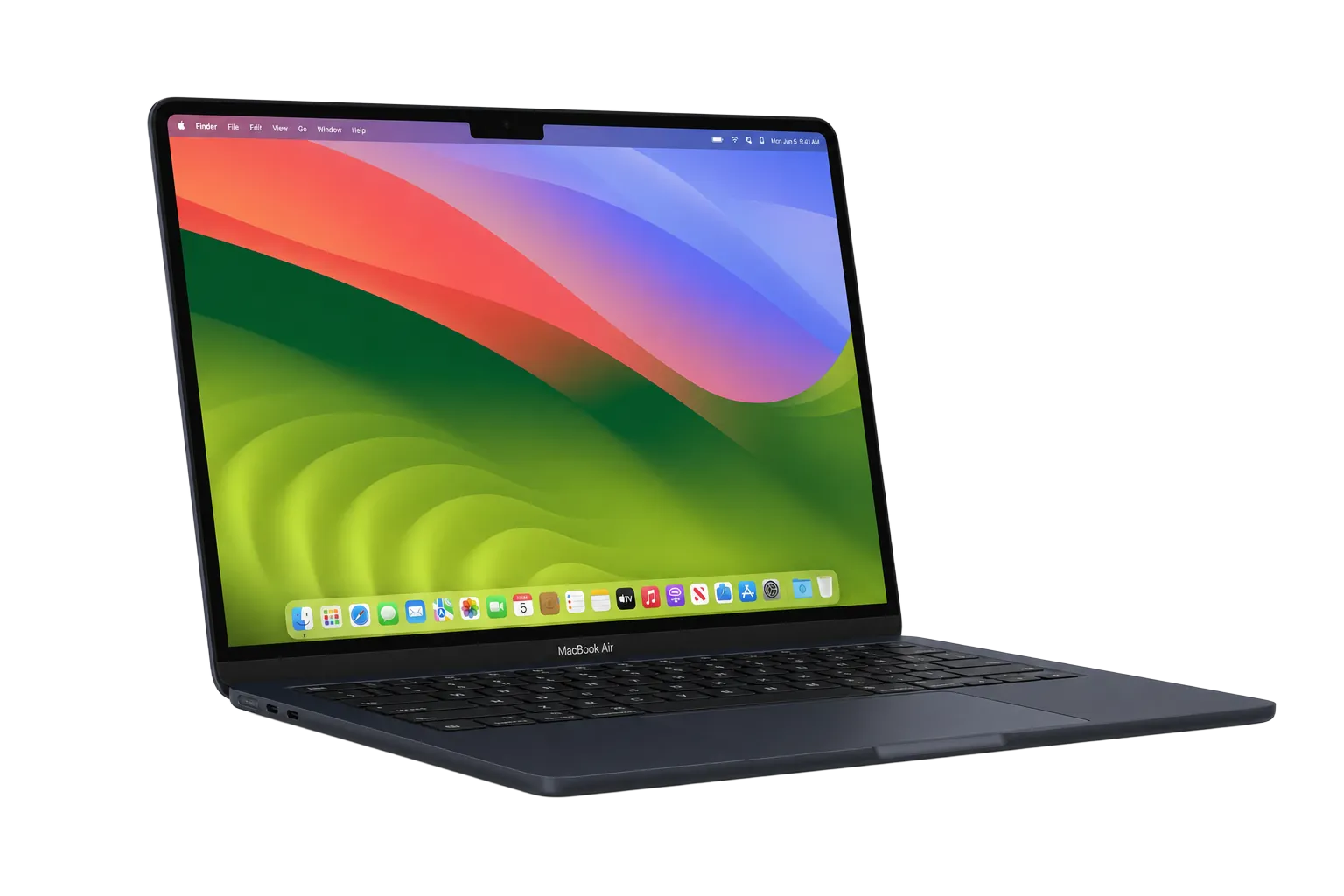
To make your MacBook aesthetic, set a clean wallpaper, hide and shrink the dock, tidy the menu bar with Hidden Bar, add desktop widgets, then match a keyboard cover, case, and desk setup to one colour palette. A setup like this makes the MacBook a reflection of your personal style, and whether you work from a co-working space in Dubai Marina, study at a university cafe, or create content from a home office, it makes the day more enjoyable, more motivating, and genuinely more productive. macOS is deeply customisable, and the right combination of wallpapers, apps, accessories, and desk choices can make a workspace look like it belongs in a design magazine.
In this guide, we cover every aspect of making your MacBook aesthetic, from software customisation like wallpapers, dock settings, and menu bar tweaks, to physical accessories like keyboard covers, hard cases, stickers, and desk setups. We also recommend specific apps and tools that can take your MacBook's appearance to the next level. A minimal and clean look, a dark and moody one, or a colourful and creative one all have something here for you.
And if your current MacBook is too old or too slow to run the latest macOS features and customisation tools, remember that Apple Force in Dubai makes it easy to sell your old Mac and upgrade to a newer model that can handle everything you want to throw at it. Let's get started.
Written by Bilal Khan, Senior Apple Hardware Technician
Board-level micro-soldering, liquid-damage recovery, 9+ years
Technically reviewed by Rashid Al Marri, Lead Technician, Apple Force Dubai · Last reviewed 28 May 2026
Why Choose Apple Force?
Choose the Perfect Wallpaper
The wallpaper is the foundation of your MacBook's aesthetic. It sets the tone for everything else, the colour palette of your apps, the mood of your workspace, and even the accessories you choose. A great wallpaper can transform a generic MacBook into something that feels uniquely yours.
For a minimal, clean look, consider solid-colour or gradient wallpapers in muted tones like soft grey, blush pink, sage green, or warm beige. Sites like Unsplash, Pexels, and Pinterest are excellent sources for high-resolution, free-to-use wallpapers. For something more dynamic, try wallpaper apps like Wallpaper Engine (available on the Mac App Store) that offer animated and interactive wallpapers, including subtle particle effects and slow-moving gradients.
Pro tip: choose a wallpaper that does not distract from your desktop icons and windows. Dark wallpapers work beautifully with macOS's dark mode and make colourful app icons pop. Light wallpapers create an airy, open feel and pair well with light mode. You can also set different wallpapers for your desktop and lock screen, or use a dynamic wallpaper that shifts throughout the day. To set a custom wallpaper, right-click the desktop, choose Change Wallpaper, and drag in your image.
- Browse Unsplash, Pexels, and Pinterest for high-res wallpapers
- Try Wallpaper Engine for animated and interactive backgrounds
- Match your wallpaper to your preferred light or dark mode
- Use solid colours or subtle gradients for a minimal aesthetic
- Set different wallpapers for desktop and lock screen
- Choose wallpapers that complement your physical desk setup
Customise the Dock and Menu Bar
The dock and menu bar are always visible, so customising them has a huge impact on your MacBook's overall look. A cluttered dock with dozens of app icons looks messy, while a curated, organised dock feels intentional and polished. Start by removing apps you rarely use. Right-click any dock icon and choose Remove from Dock. Keep only your most-used applications, ideally between 5 and 10 icons.
To make the dock more aesthetic, enable auto-hide by going to System Settings > Desktop & Dock and turning on Automatically hide and show the Dock. This keeps the dock out of sight when you are not using it, giving your desktop a cleaner, more spacious feel. You can also reduce the dock icon size and adjust the magnification setting to create a subtler, more refined appearance.
For the menu bar, consider hiding icons you do not need. Click on the Control Centre icon in the menu bar to manage which modules are visible. You can also use a free app like Hidden Bar to collapse menu bar icons behind a simple divider, keeping the top of your screen clean and uncluttered. If you want to go further, apps like Bartender offer advanced menu bar management with custom grouping and ordering.
- Remove rarely-used apps from the dock, keep 5 to 10 essentials
- Enable auto-hide for a cleaner desktop in System Settings > Desktop & Dock
- Reduce dock icon size and minimise magnification
- Use Hidden Bar or Bartender to tidy up menu bar icons
- Organise dock apps by category: work, creative, communication
- Consider centre-dock placement for a balanced, modern look
Use Desktop Organisers and Widget Customisation
A messy desktop with files and screenshots scattered everywhere ruins even the most carefully chosen wallpaper. macOS has built-in tools to keep things tidy, but third-party apps take organisation to the next level. Start by using macOS Stacks. Right-click the desktop, select Use Stacks, and your files will automatically group by type, date, or tag. This alone transforms a chaotic desktop into an orderly one.
For a truly aesthetic desktop, consider apps like Uberspace or Widgetsmith that let you place custom widgets on your desktop. You can add weather widgets, calendars, clocks, and inspirational quotes that match your wallpaper's colour scheme. On macOS Sonoma and later, desktop widgets are built into the operating system. Just right-click the desktop and select Edit Widgets to browse and add widgets.
Another great tool is Swish, a gesture-based window manager that lets you resize and position windows with trackpad gestures. Clean window placement, perfectly aligned with no overlapping, is a hallmark of an aesthetic setup. Combined with a clean desktop and thoughtful widget placement, your MacBook will look like a professional designer's workstation.
- Enable Stacks on your desktop to auto-organise files by category
- Use macOS Sonoma widgets for weather, calendar, and clock displays
- Try Uberspace or Widgetsmith for custom desktop widgets
- Use Swish for gesture-based window management and alignment
- Keep the desktop free of loose files, use folders or Stacks
- Choose widget styles that match your wallpaper colour palette
Keyboard Covers, Cases, and Stickers
Physical accessories are where you can really personalise your MacBook. A well-chosen keyboard cover, hard case, or decal set turns a standard silver or space-grey MacBook into something that is unmistakably yours. In Dubai's creative community, personalised MacBooks are a common sight at cafes, co-working spaces, and university campuses.
Keyboard covers from brands like Moshi, Kuzy, and Case-Mate come in a huge range of colours and patterns. A pastel pink or matte black cover can completely change the look of your MacBook. Hard shell cases offer both protection and style, choose from clear cases, matte finishes, marble patterns, or gradient designs. If you prefer something less permanent, vinyl stickers and laptop decals from brands like Redbubble, dbrand, and Etsy sellers let you express your personality without committing to a full case.
For the ultimate aesthetic touch, coordinate your MacBook's physical accessories with your wallpaper and desk setup. A rose-gold keyboard cover paired with a matching wallpaper, mouse pad, and desk lamp creates a cohesive, Instagram-worthy workspace. Just remember that some keyboard covers can affect the typing feel, and certain cases may interfere with the MacBook's hinge, read reviews before purchasing.
- Choose keyboard covers in colours that match your aesthetic
- Hard shell cases in marble, matte, or clear finishes for style and protection
- Vinyl stickers and decals from Redbubble, dbrand, and Etsy
- Coordinate accessories with your wallpaper and desk colour scheme
- Consider a trackpad skin for a fully matching look
- Read reviews to ensure cases do not interfere with the hinge or cooling
Create an Aesthetic Workspace Setup
Your MacBook does not exist in isolation. The desk, lighting, and surrounding environment all contribute to the overall aesthetic. A beautiful MacBook on a cluttered, uninspiring desk does not have the same impact as one that is part of a thoughtfully designed workspace. Creating an aesthetic desk setup does not require a huge budget; it is about intentional choices and cohesive design.
Start with the desk itself. A clean, minimal desk in white, light wood, or walnut sets the perfect foundation. Add a matching mouse pad, large desk mats from brands like Grovemade or Amazon Basics in neutral tones work beautifully. A desk lamp with warm, adjustable lighting (like the BenQ ScreenBar or IKEA Tertial) adds both functionality and ambience. A small potted plant, a pothos, snake plant, or succulent, brings life and colour to the setup.
If you use an external monitor, choose one with thin bezels and a matching stand. Cable management is crucial, use cable clips, trays, or a desk with built-in cable management to keep wires hidden. In Dubai, stores like IKEA, Virgin Megastore, and online retailers like Amazon.ae carry everything you need to build an aesthetic workspace. And if you are ready to upgrade your MacBook to better complement your setup, Apple Force can help you sell your current model and fund the upgrade.
- Choose a clean, minimal desk in white, light wood, or dark walnut
- Add a large matching desk mat for a cohesive look
- Use a warm, adjustable desk lamp like BenQ ScreenBar or IKEA Tertial
- Add a small plant, pothos, snake plant, or succulents for natural colour
- Invest in cable management: clips, trays, or a desk with built-in routing
- Coordinate your monitor, peripherals, and MacBook for a unified aesthetic
Our Process
Choose Your Aesthetic Style
Decide on a visual direction, minimal, dark mode, pastel, earthy, or colourful. This will guide every other decision from wallpaper to accessories.
Set Your Wallpaper and Desktop
Pick a high-resolution wallpaper from Unsplash or Pexels. Enable Stacks, add widgets, and organise your desktop icons for a clean, intentional look.
Customise the Dock and Menu Bar
Remove unused dock apps, enable auto-hide, reduce icon size, and use Hidden Bar or Bartender to declutter the menu bar.
Add Physical Accessories
Choose a keyboard cover, case, or decals that match your style. Coordinate colours with your wallpaper and desk setup.
Design Your Workspace
Set up your desk with a clean surface, matching mouse pad, warm desk lamp, cable management, and a small plant for a complete aesthetic environment.
Frequently Asked Questions
Upgrade Your MacBook for the Ultimate Aesthetic Setup
Sell your old MacBook to Apple Force and upgrade to a newer model. Instant quotes, free pickup, and same-day payment in Dubai.